Before you start
This is a plain-English Meshtastic setup guide based on the latest Android app notes for
September
2026. Android 2.8.1 Mesh firmware 2.7.26 iOS 2.7.22 The goal
is to get a beginner node working without needing to understand every radio
detail first.
- In Southern California? Visit SoCalMesh Discord. The Parrot bot can confirm messages are reaching the mesh!
- Mesh can be slow, laggy, and unreliable. Dropped messages, no direct nodes, limited interactions, but still fun.
- NOBODY OWES YOU A REPLY to a "TEST" but before doing that, try Local Mesh Discovery. *also, if you don't know your node hash or have a unique long name, any reply can be to any of the hundred other "test" messages we see daily.
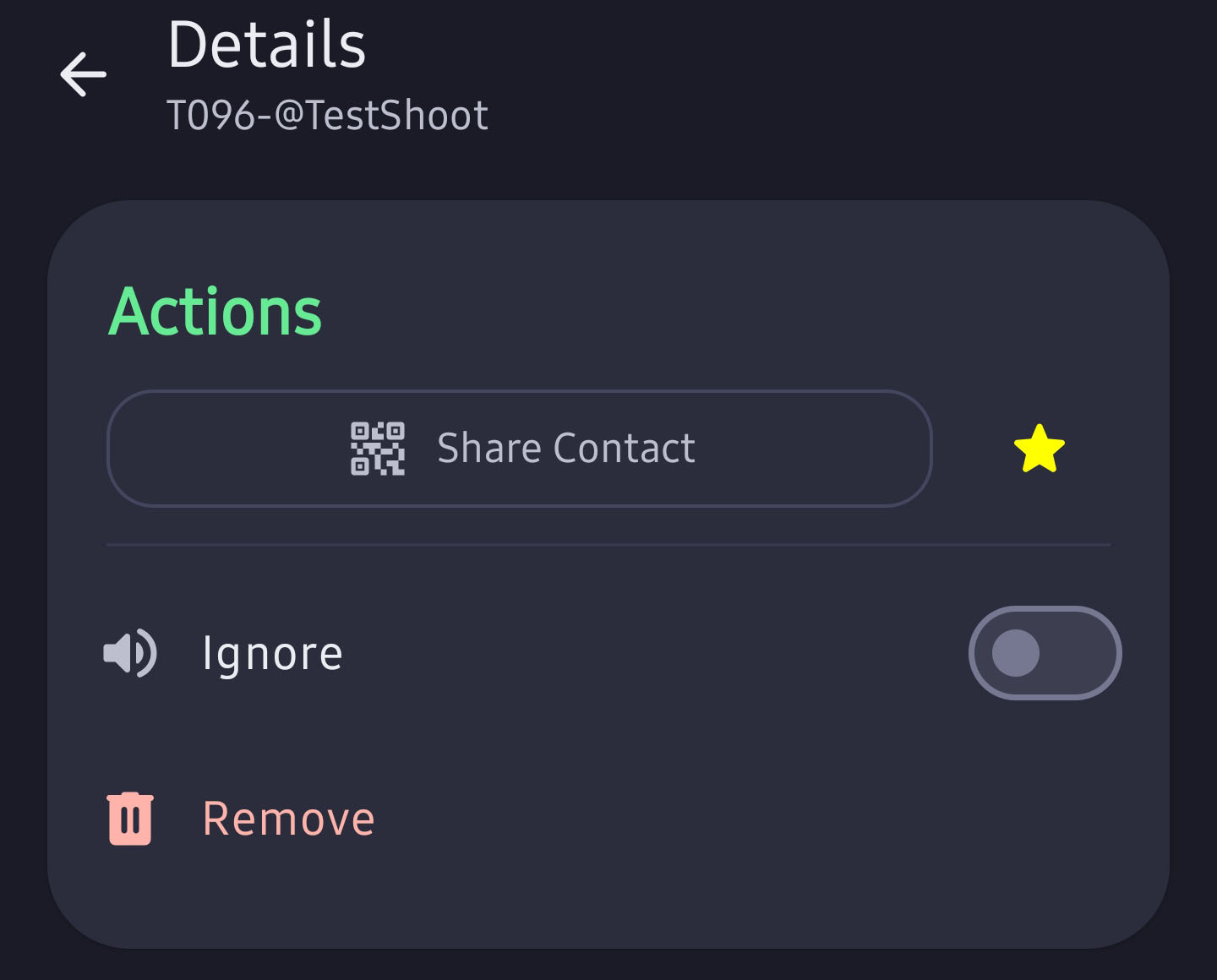
- Some random racist and anti-semetic comments come with the territory. There will also be people playing some persona, and doing puns on their username or dumping random text. BuT iT iS fReE sPeEcH so learn to use the "ignore" function. See: Advanced Functions
- The iOS version is missing functonality but improving. Sometimes it's like trying to cross the country making only left turns in that environment. I have the screengrabs, just working on it now Sept 24th 2026
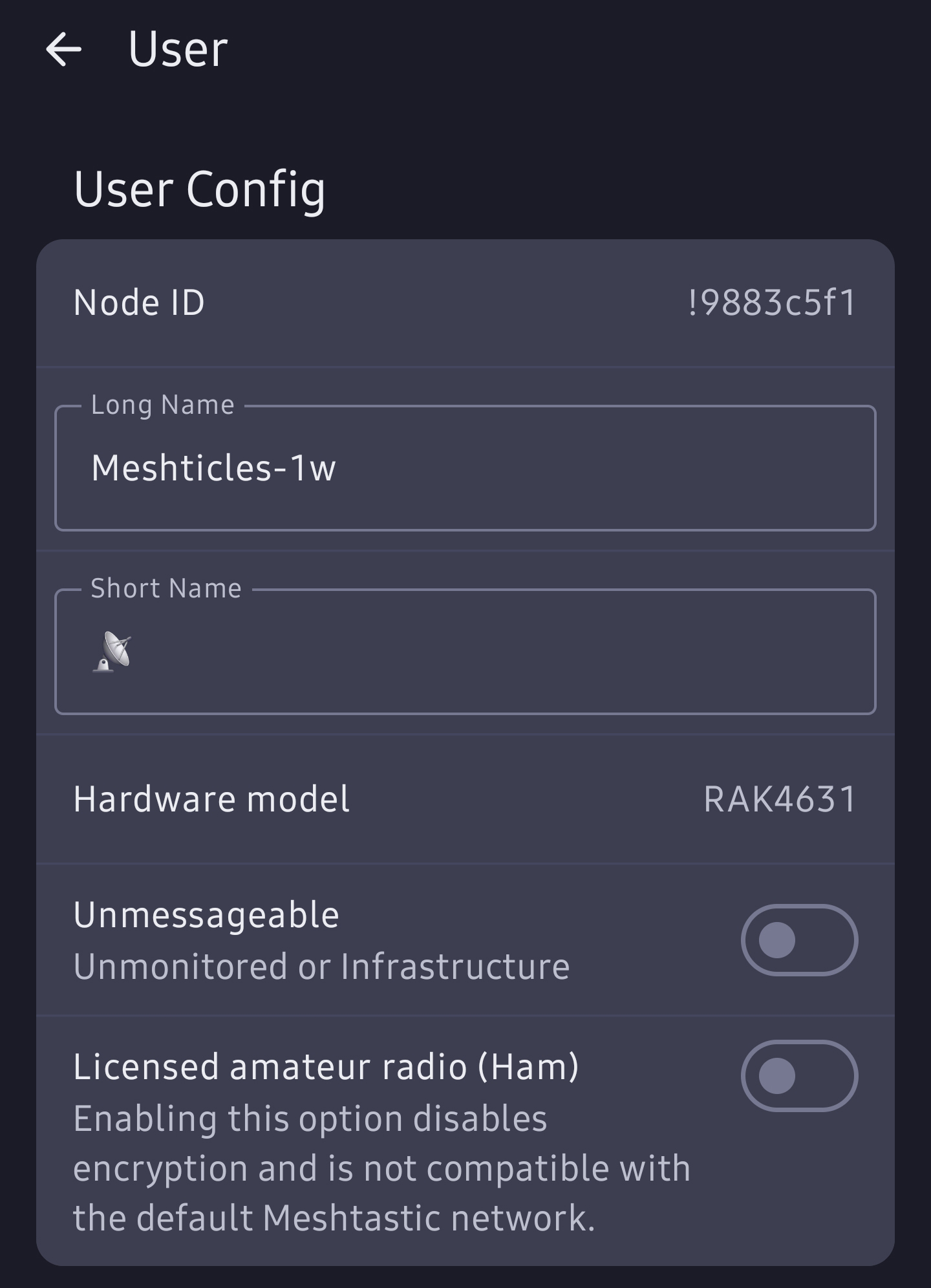
1. User settings
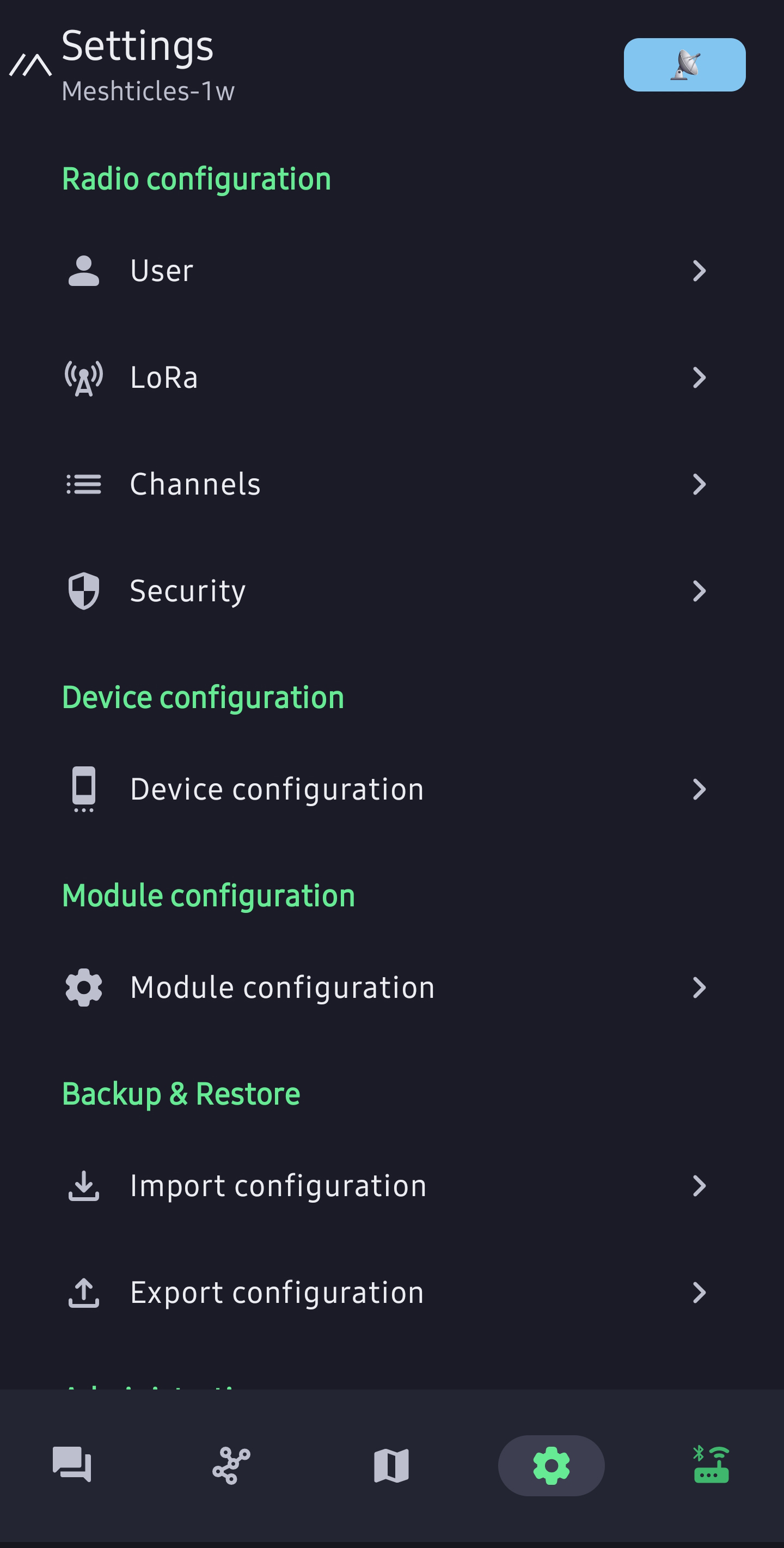
Start with identity. This is how people can recognize you and reply.
User settings Screenshots
2. LoRa settings (important)
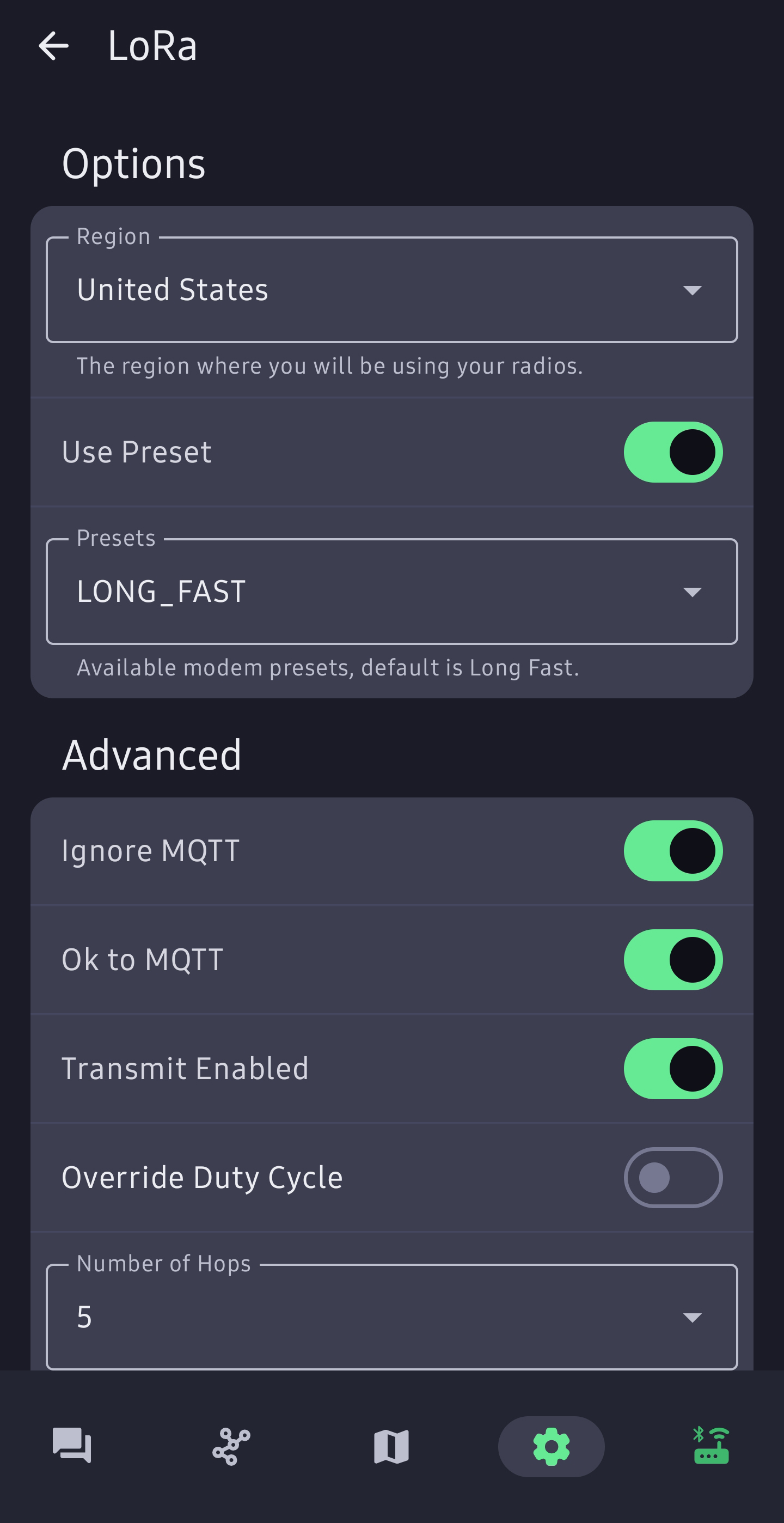
These settings control the radio side of Meshtastic. For beginners, start conservative and avoid flooding the network.
Long_Turbo. - Leave it 30, it's no benefit to change until you know what you are doing and have proper hardware that knows how to use it.
LoRa settings Screenshots
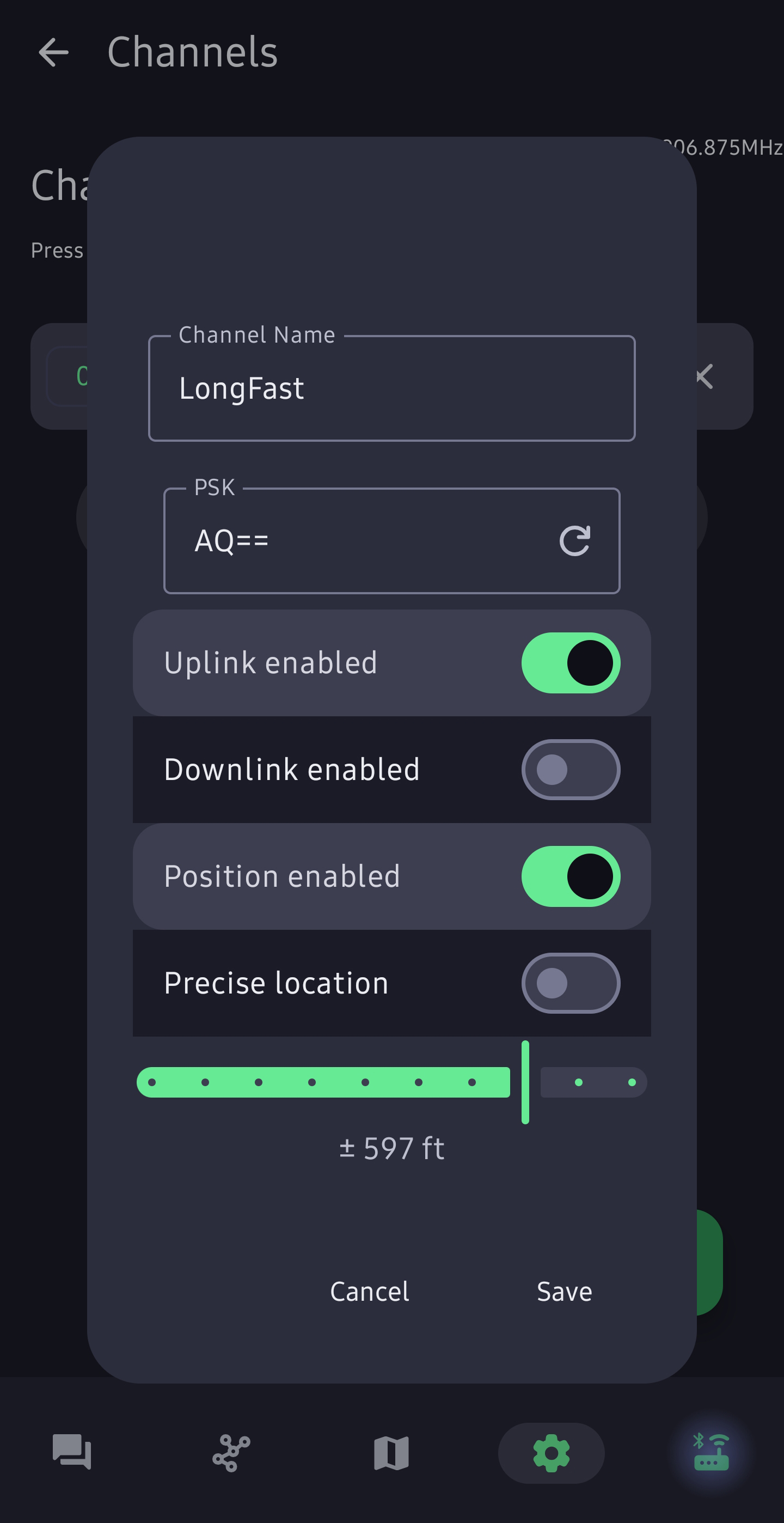
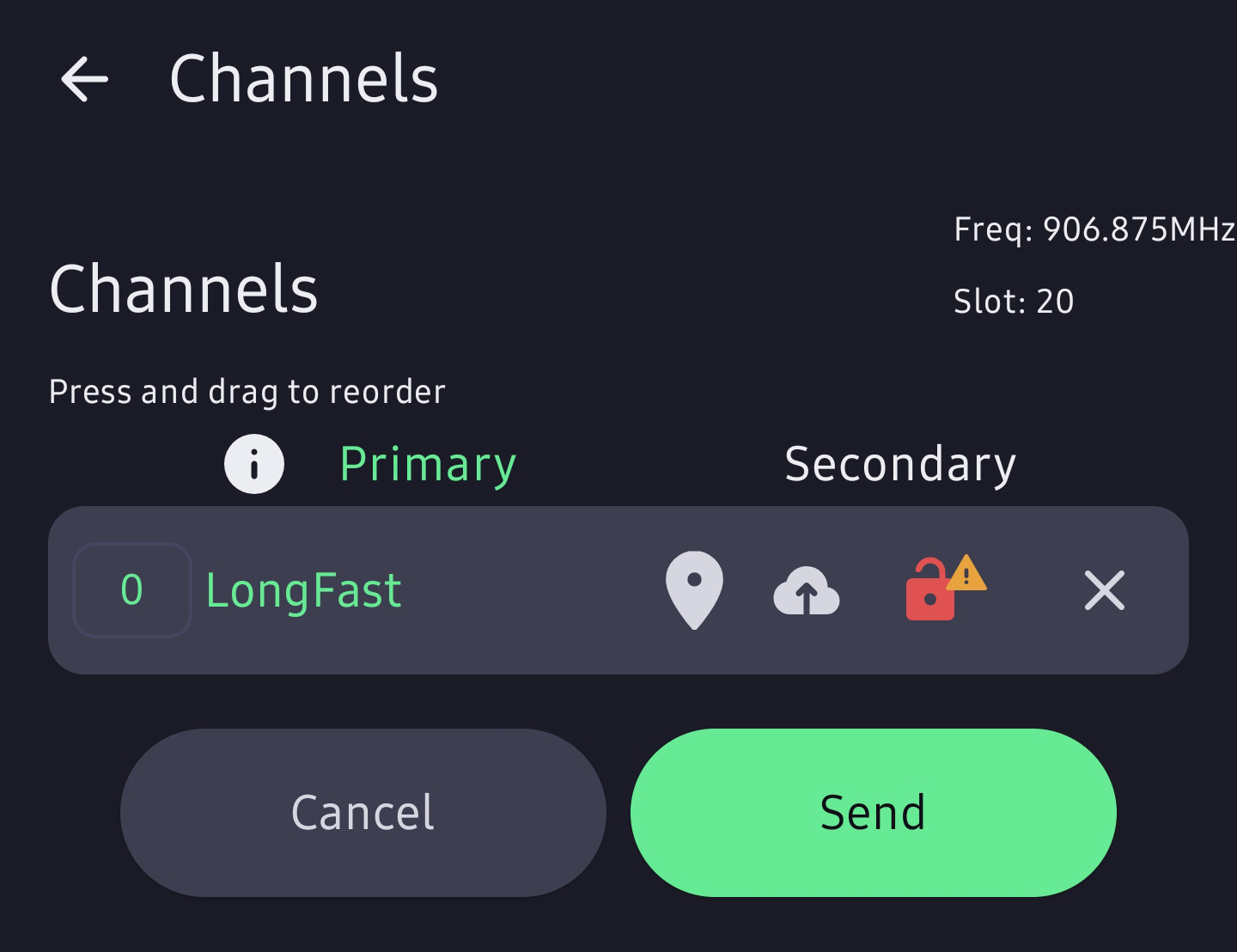
3. Channel configuration
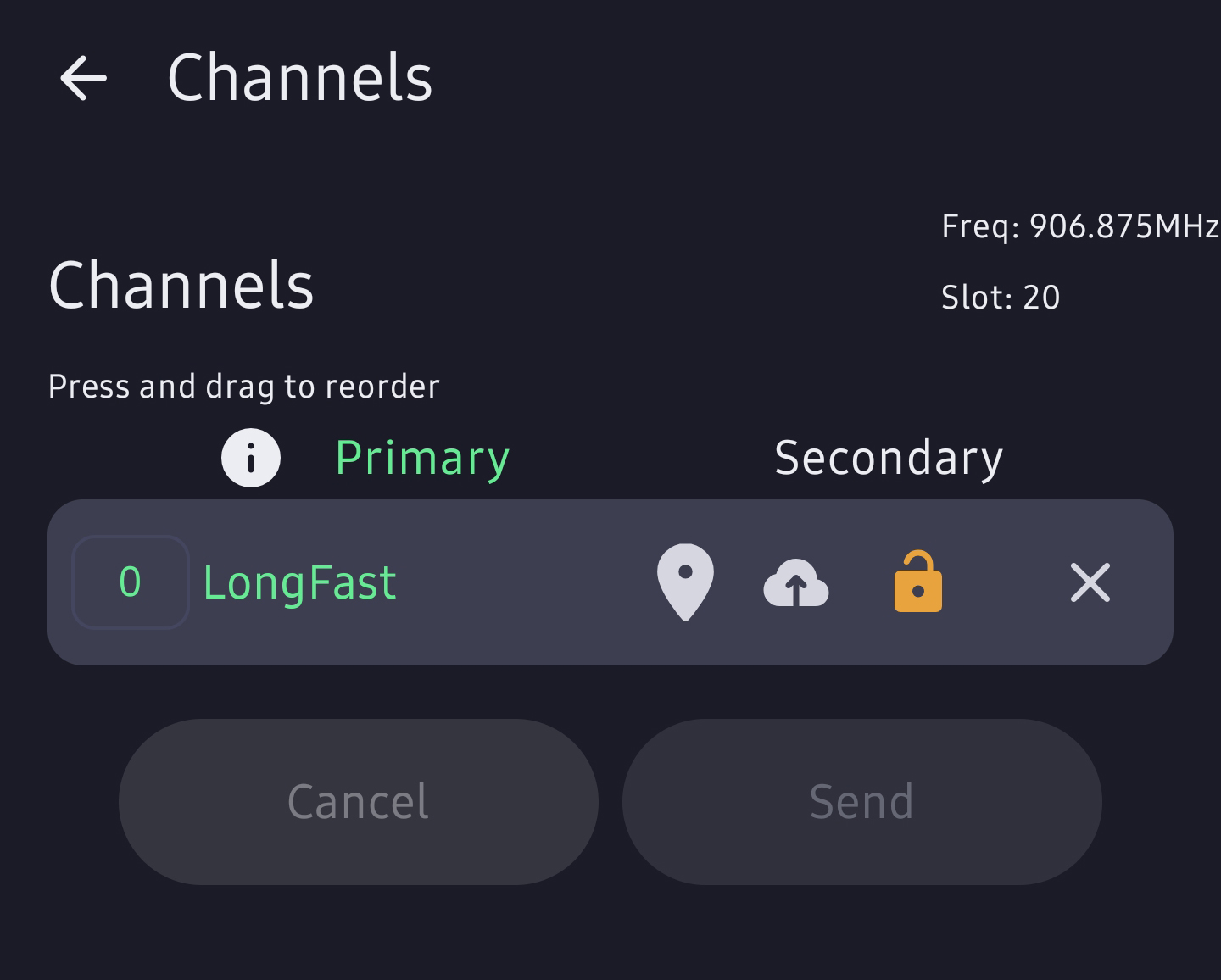
On the LongFast channel, use these settings as a basic starter setup.
Channels Screenshots
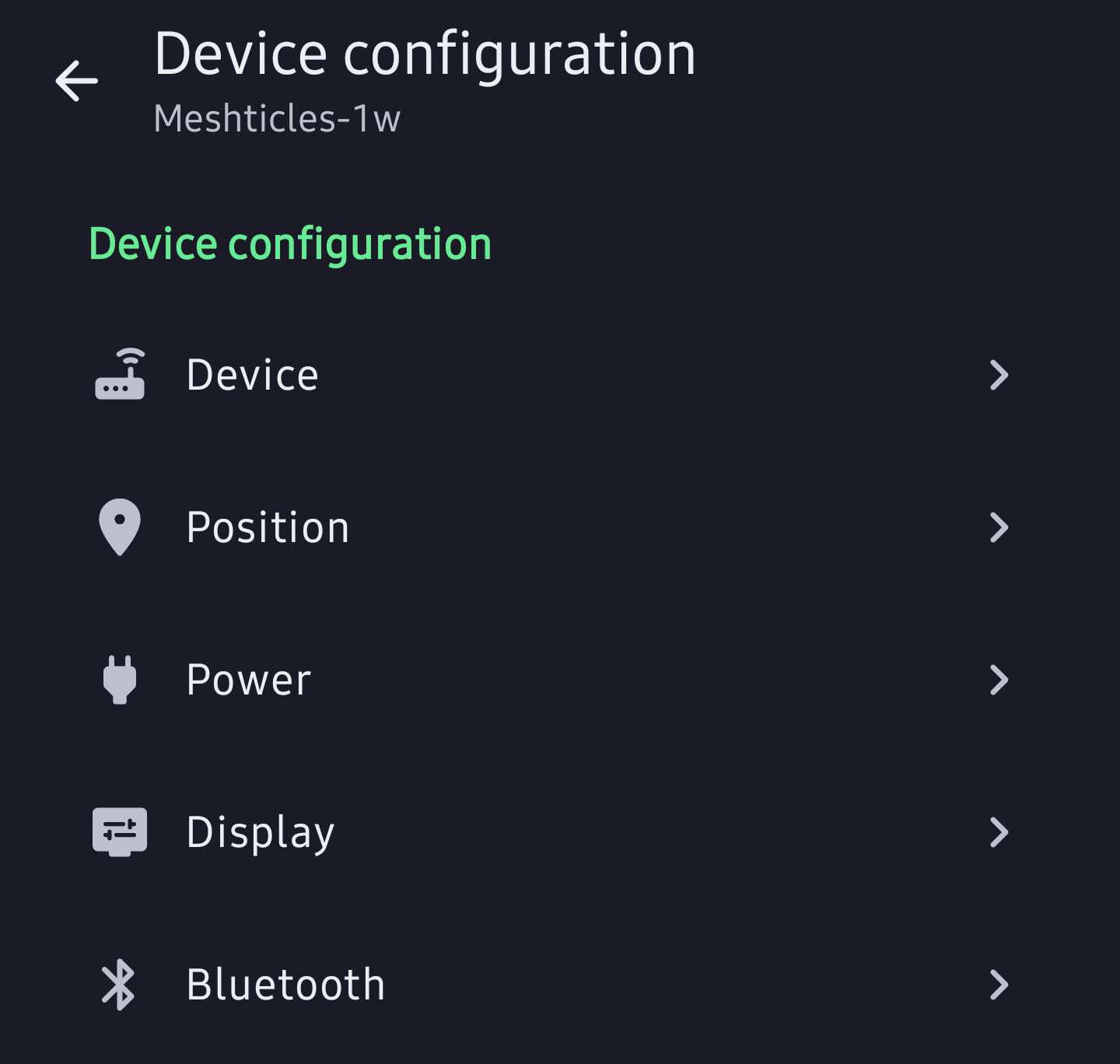
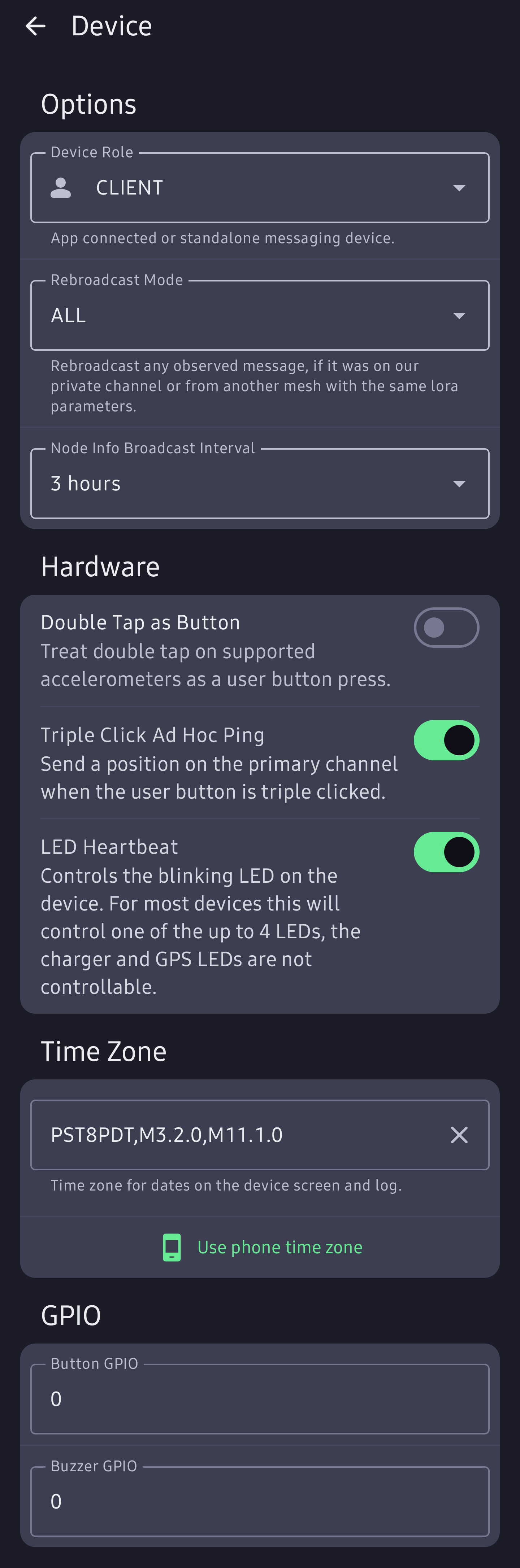
4. Device configuration
These settings make your node behave like a normal user node and help others identify it.
Device Details Screenshots
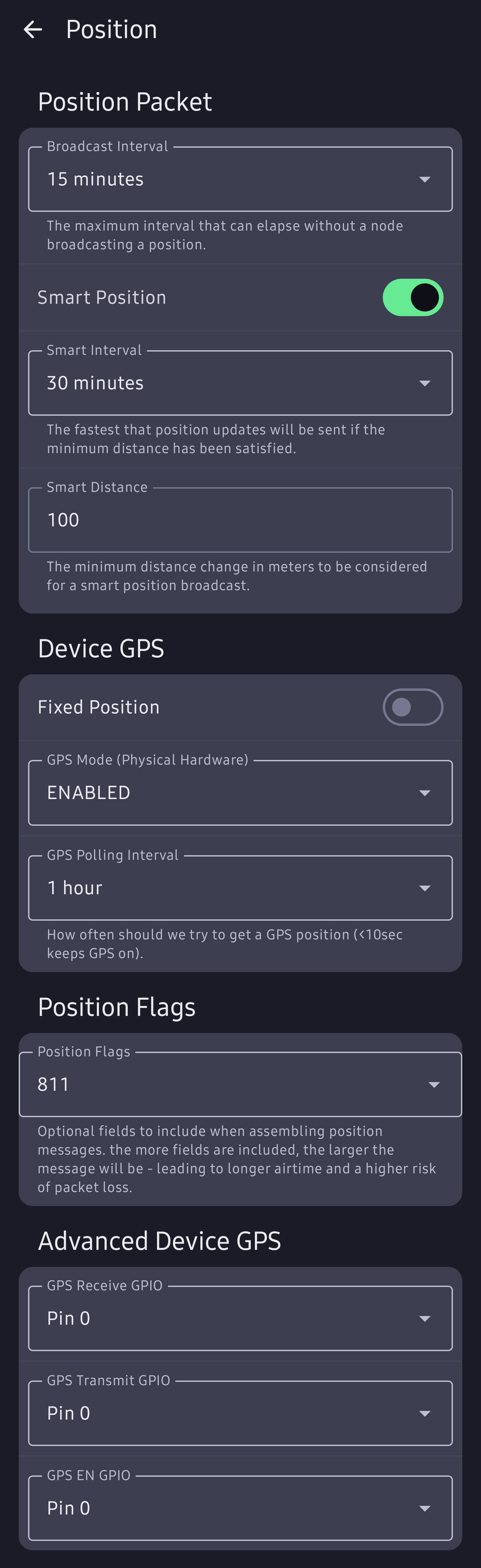
5. Position settings
Position settings depend on whether the node is mobile or fixed.
- Broadcast Interval: 15 or 30 minutes. Shorter intervals create more mesh traffic.
- Smart Position: checked.
- Smart Interval: make it the same as broadcast.
- Use Fixed Position only for non-mobile nodes.
- Set intervals much longer because the node location is not changing often.
Device position Screenshots
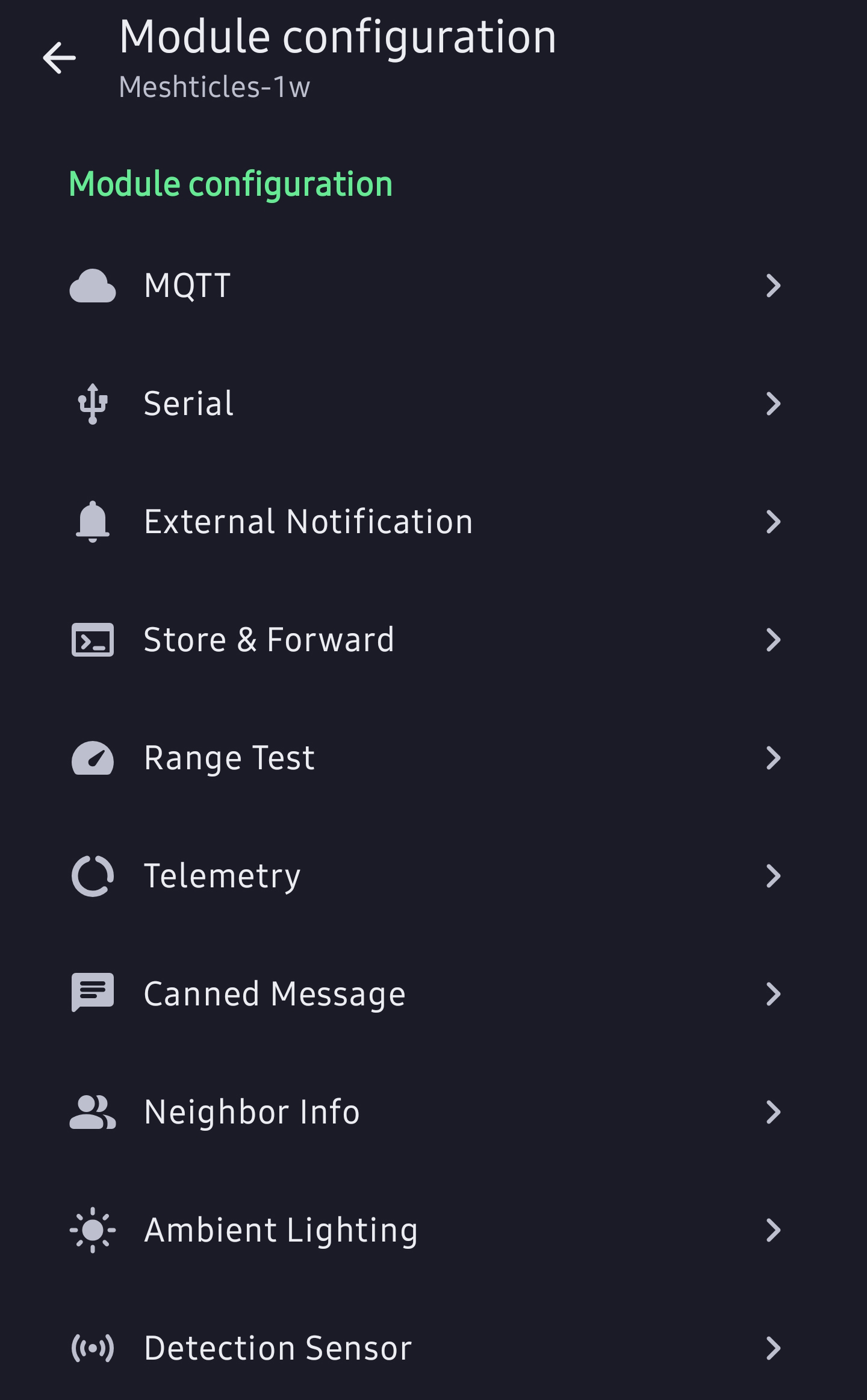
6. MQTT (optional)
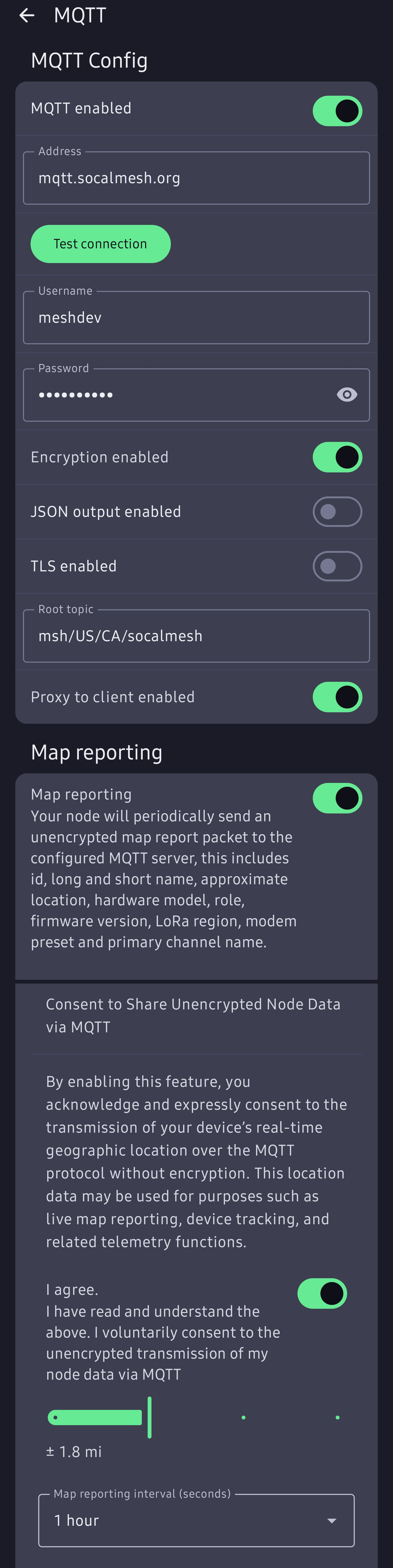
MQTT is not really “mesh” in the pure radio sense because it uses the internet to send your messages and is not necessary to function. Think of it as last resort turning your phone and device into complicated SMS.
mqtt.socalmesh.orgmsh/US/CA/socalmesh (case
sensitive.)MQTT settings Screenshots
7. Your first test message etiquette
Go outside
If you cannot see nodes, give yourself about 15 minutes and get elevation. A parking garage top floor, hill, or open area can make a big difference and try to scan for nodes.
- Open Messages
- Select Long_Turbo
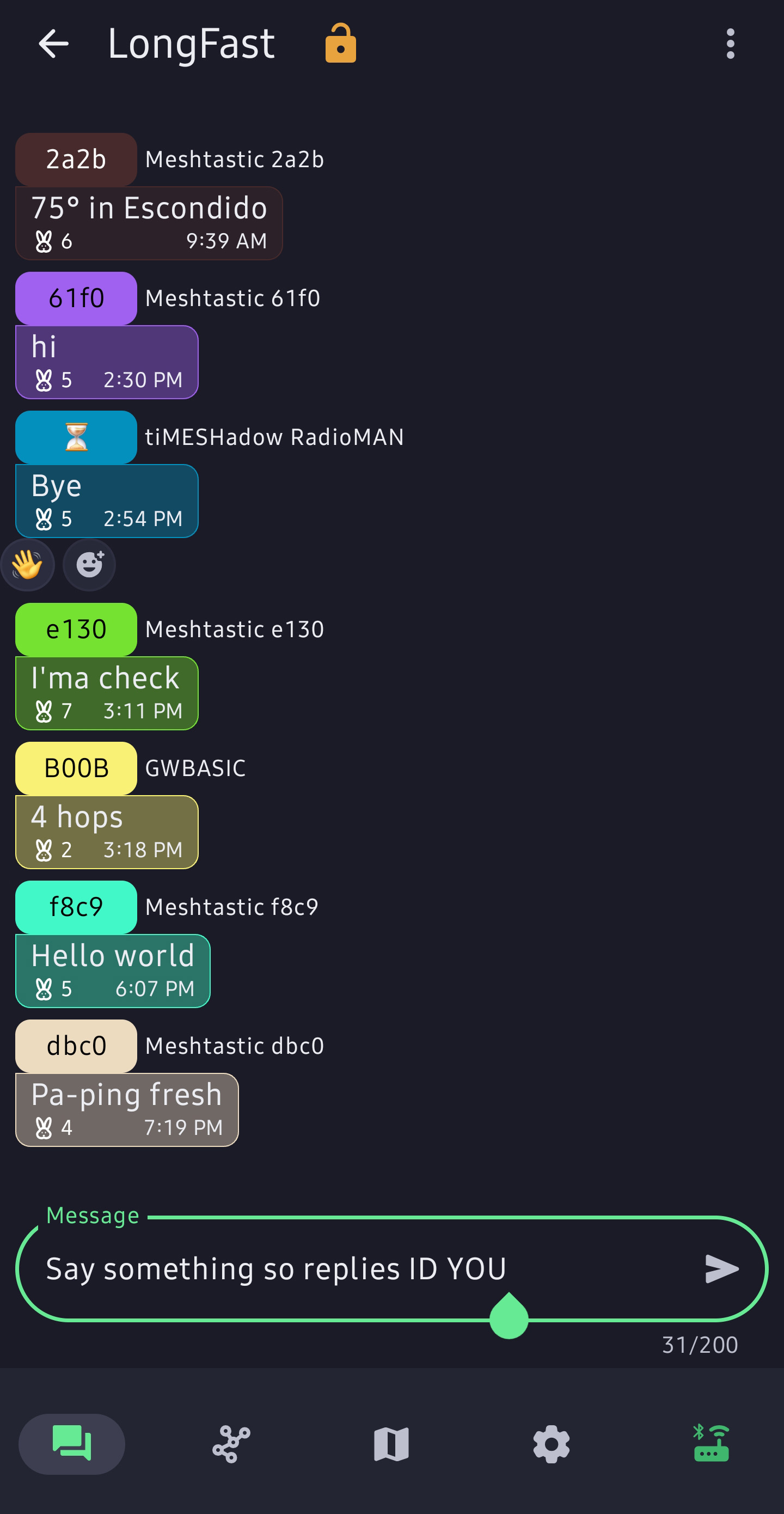
- Enter something so replies are to you, not the void.
- Be concise in your test message.
- Say something unique and make sure you know your node hash or have a unique name.
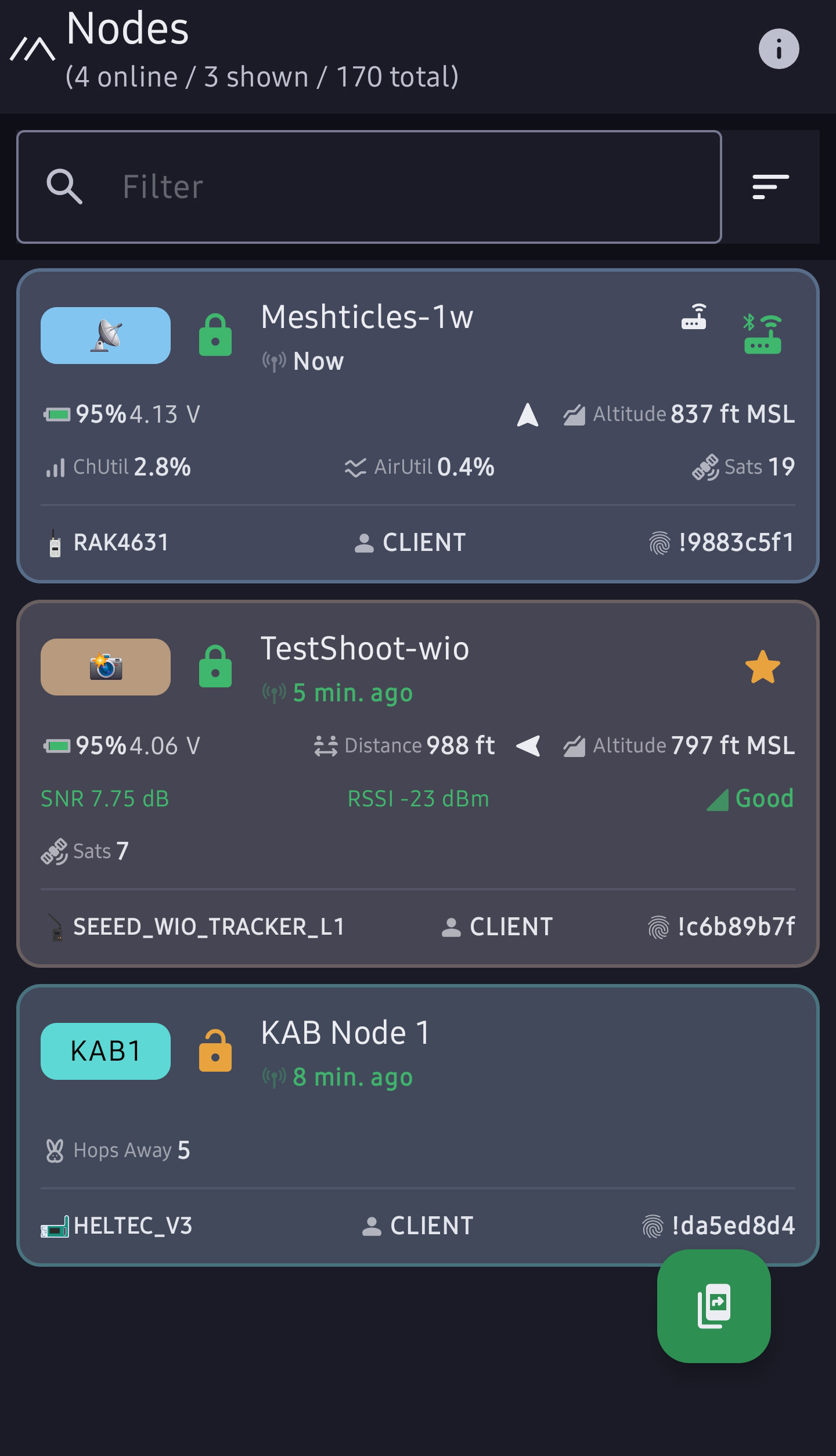
- Open the nodes page in the app.
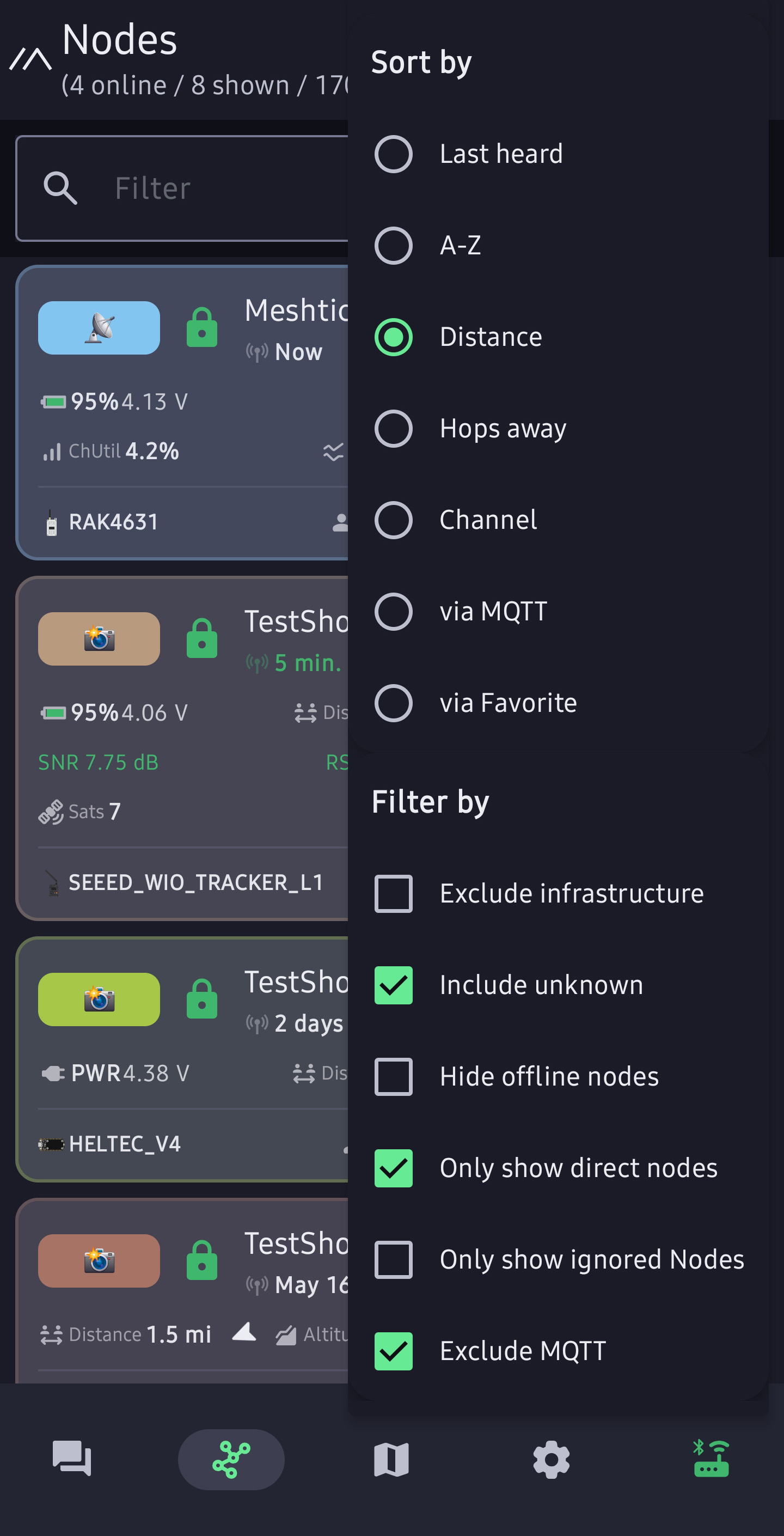
- Filter for only show direct nodes.
- If you still see nothing after about 30 minutes, deselect any kind of filtering.
- Have you tried to discover nodes?
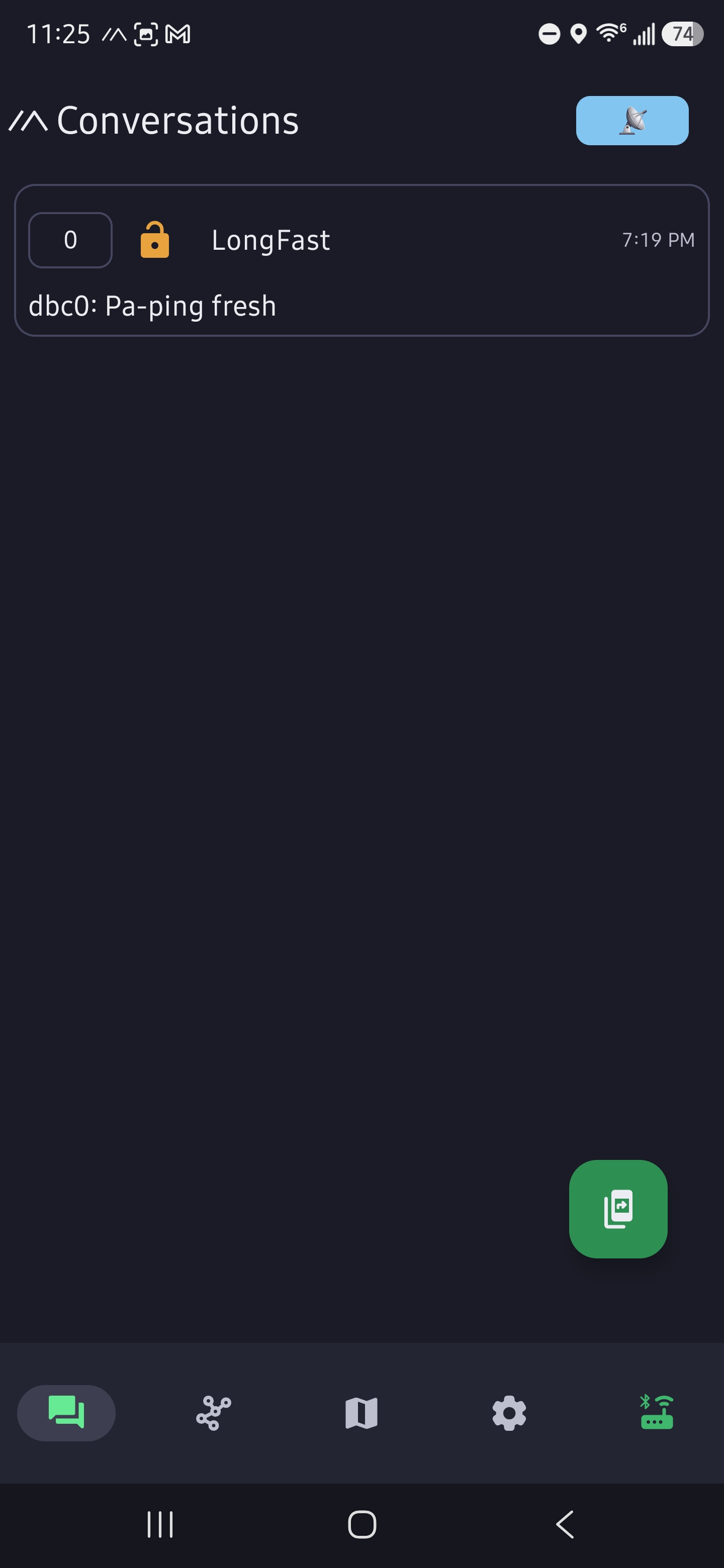
Test Message Process Screenshots
8. Automatic verification with SoCalMesh
If you are using the SoCalMesh Discord, you can link your node and watch for your first message.
- Open the Meshtastic app.
- Go to the nodes page.
- Tap your node.
- Copy the User ID that starts with something like
!1234abcd. - Go to Discord (general is good enough) and type
/linknode. - Paste your node ID into the field.
- Send your first message from the Meshtastic app.
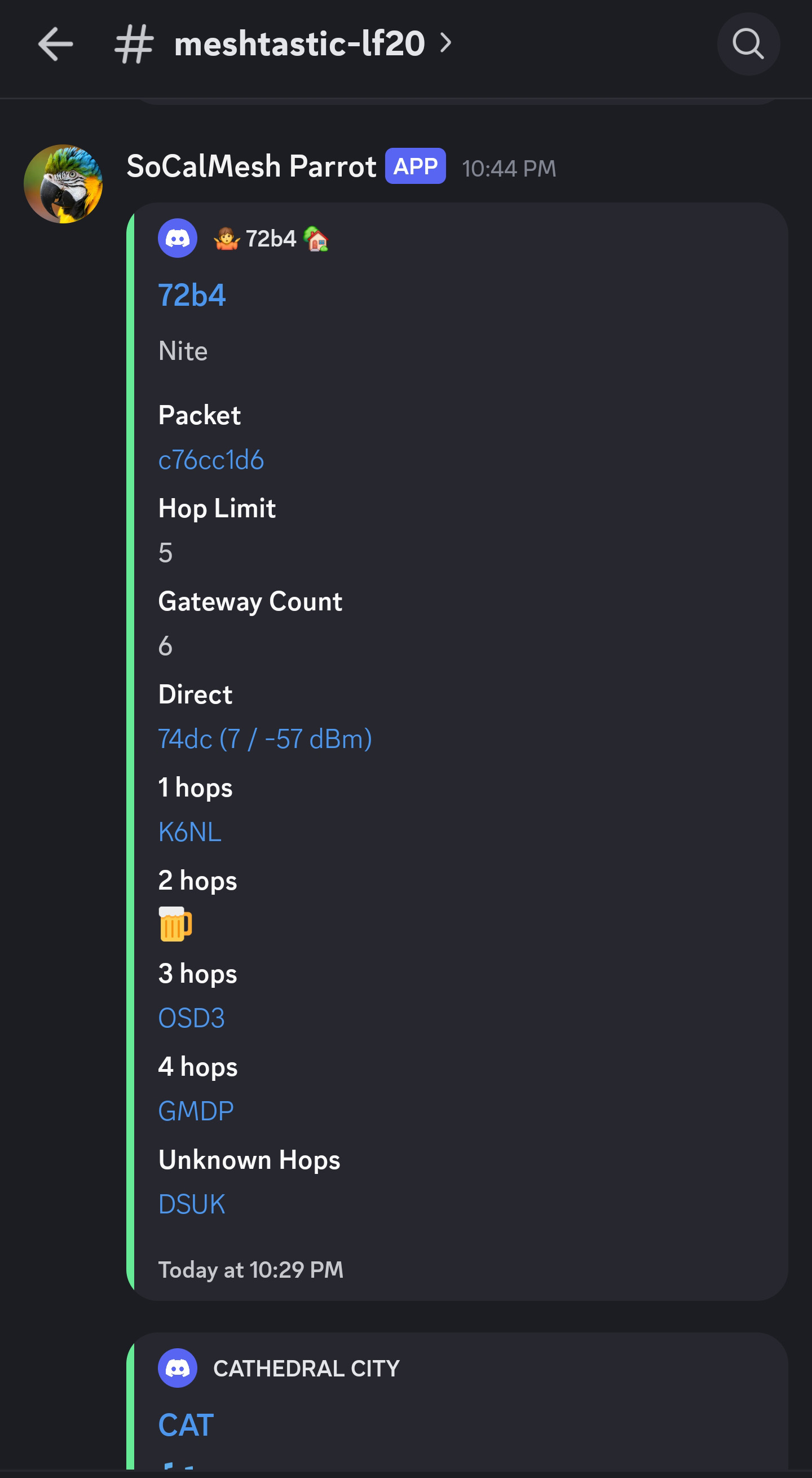
- Watch the Parrot bot in Node Monitoring → meshtastic-lt14 and in a few moments your message should appear.
The Parrot post is useful because it tells you how many hops it took to reach the bot. If you linked the node and added your long name to the device in step 1 it will display here!
Verification Process Screenshots
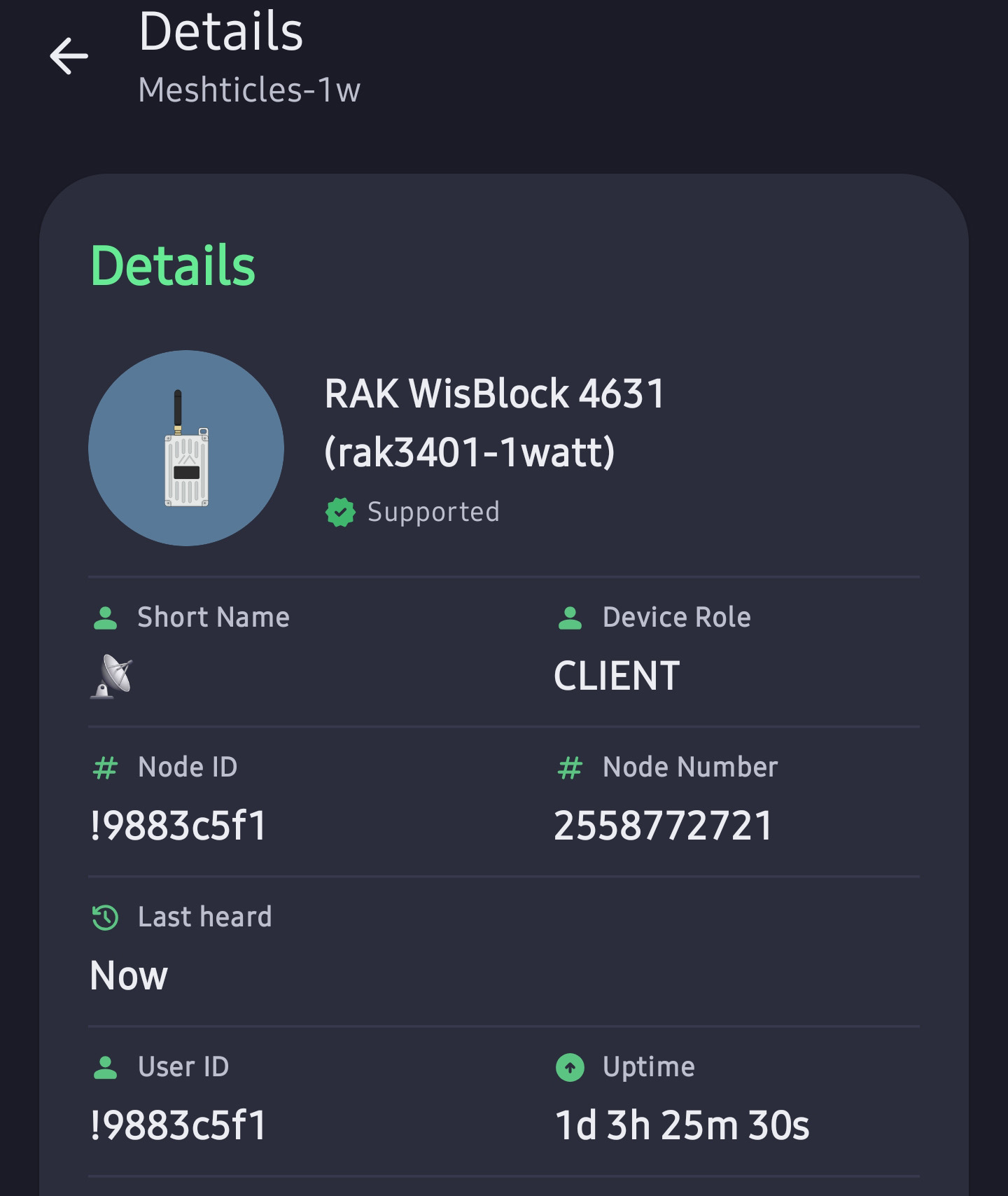
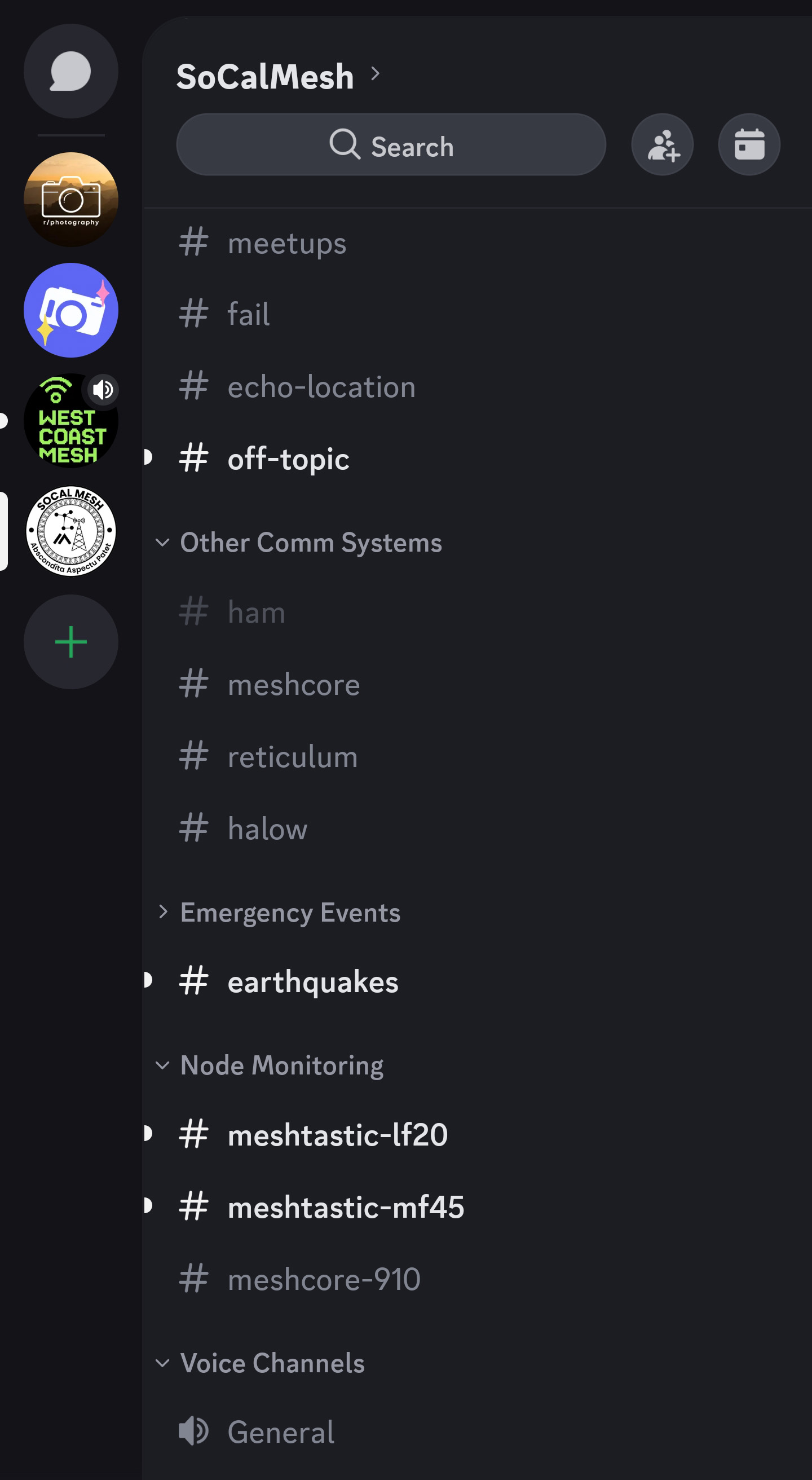
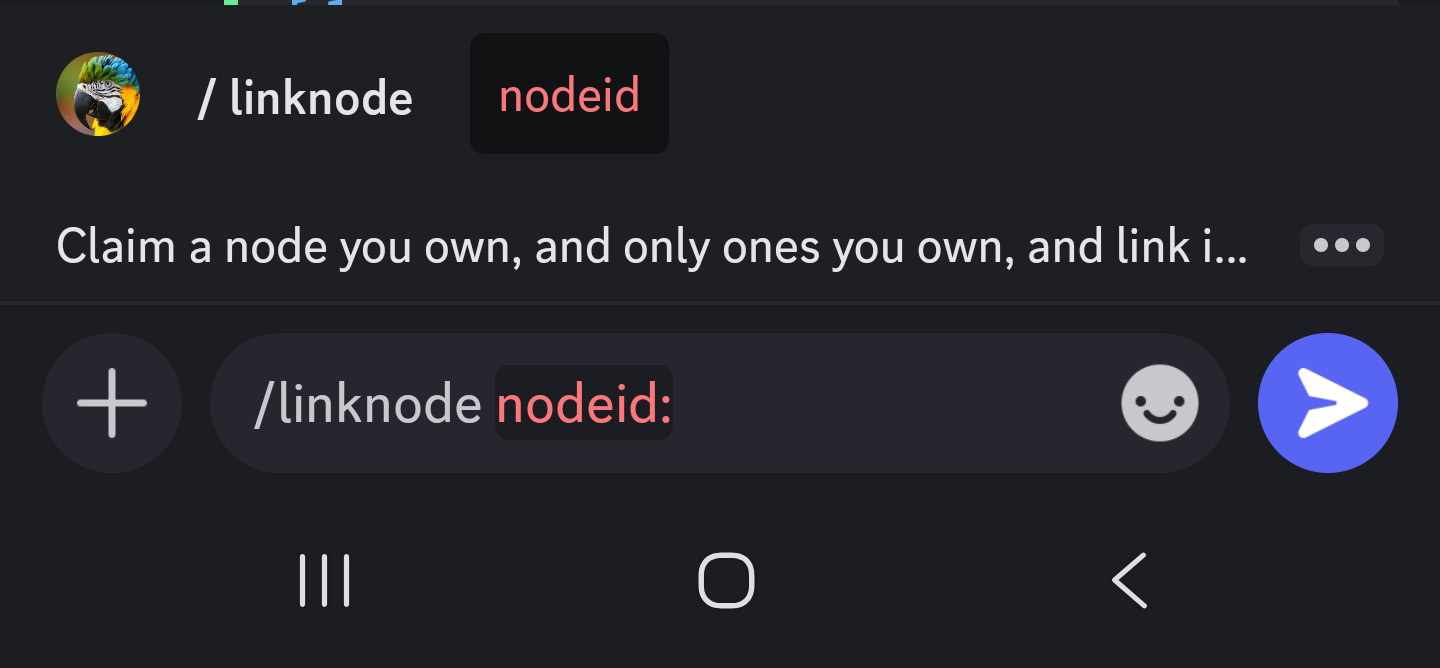
/linknode and press Enter. Note the "Node ID" is YOU
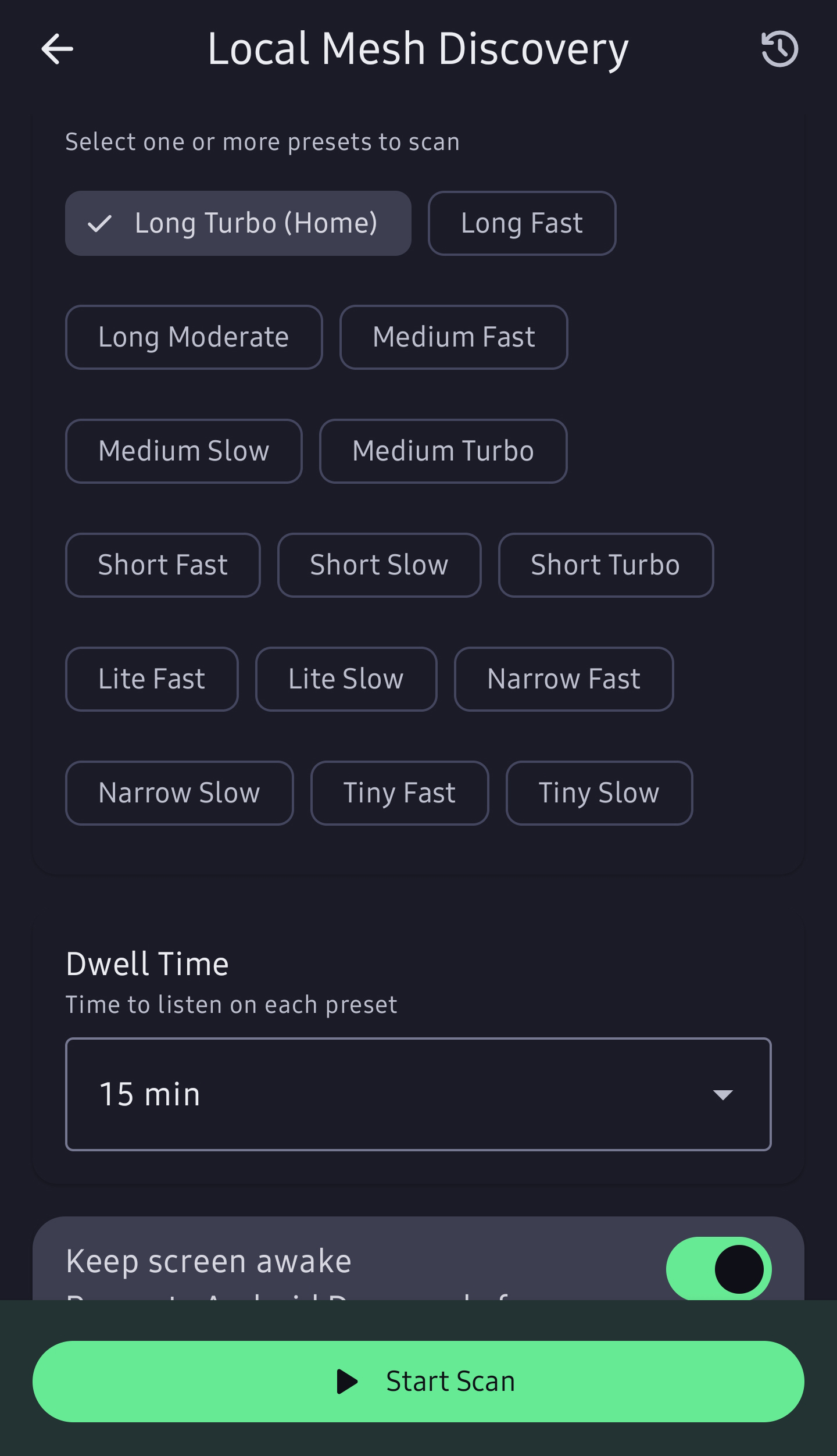
9. Node Discovery!
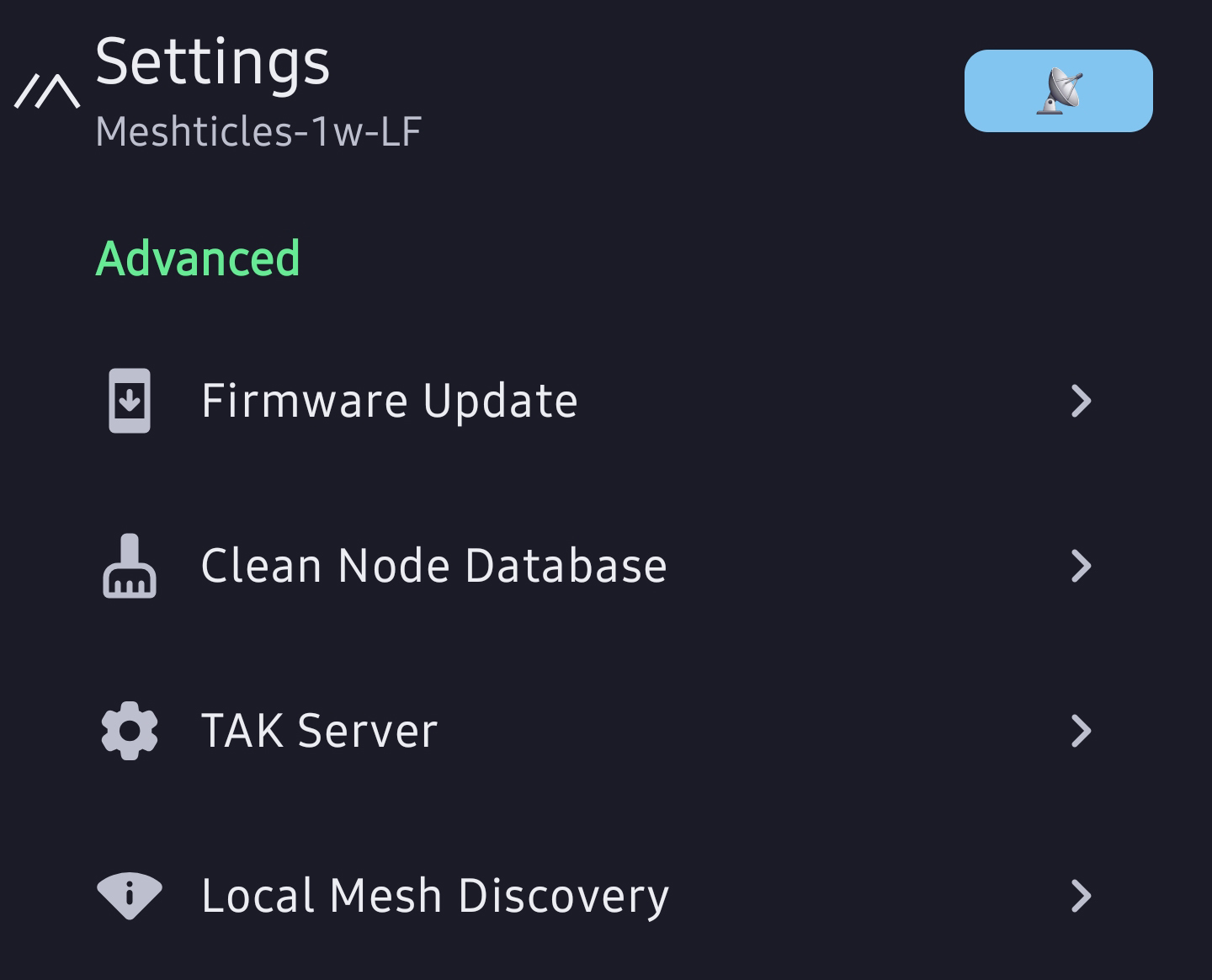
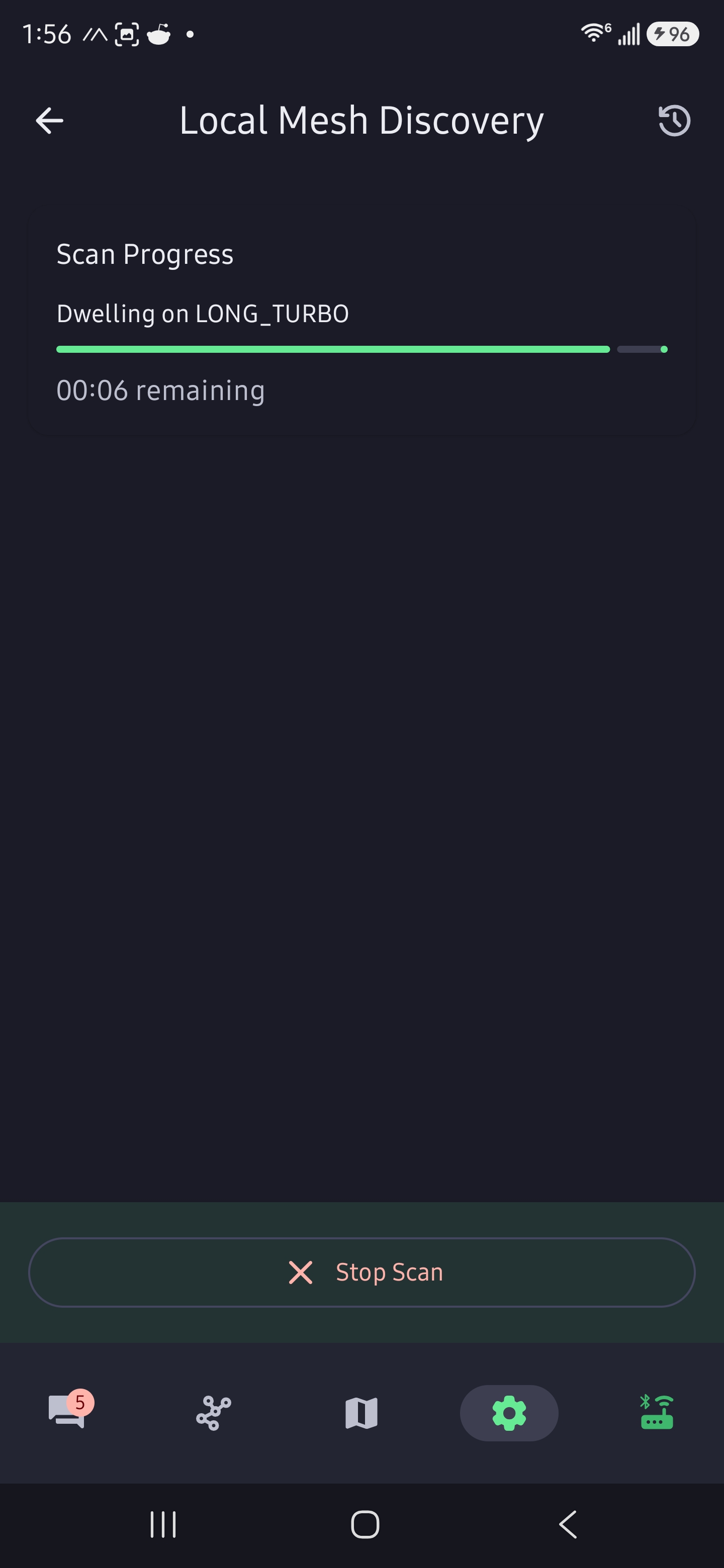
Scan for nodes.
- Choose the presets to scan.
- Set time duration for the scan.
- Optional: leaving the screen on.
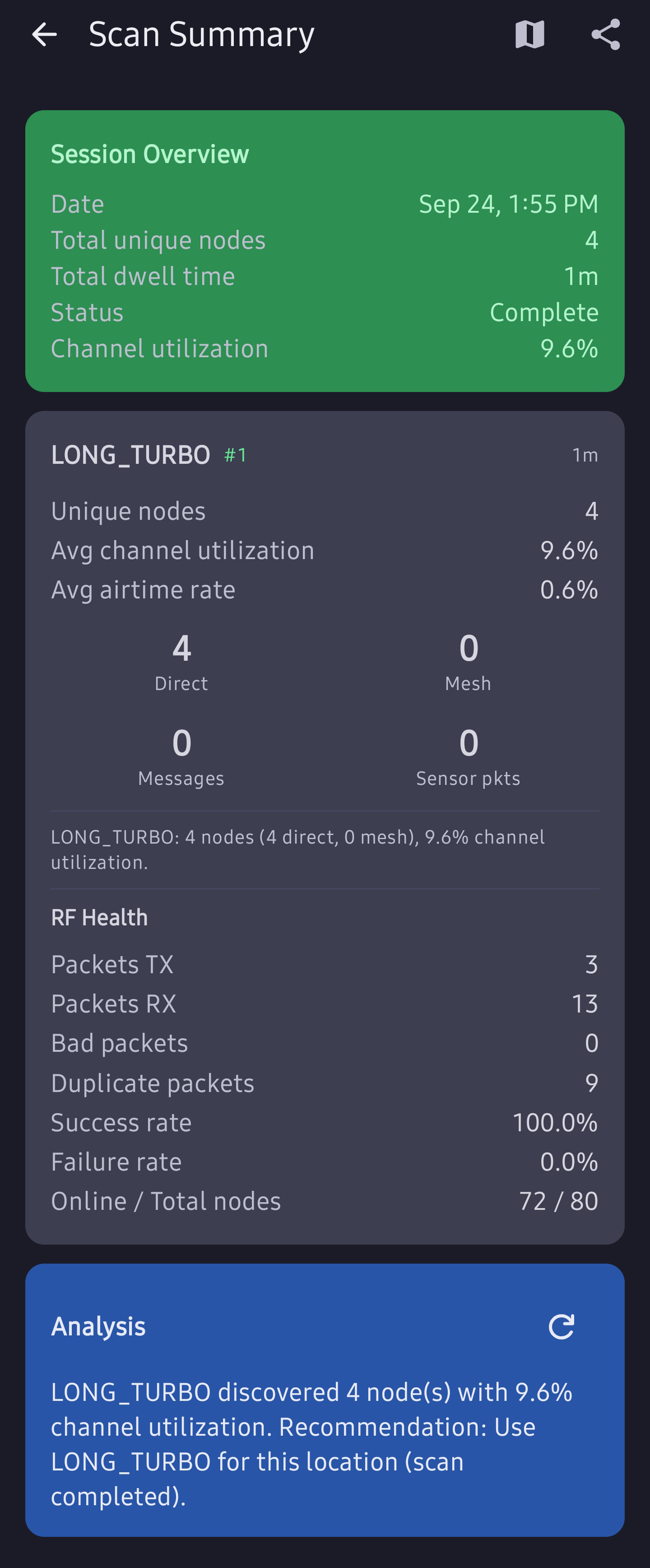
- Session results.
- Frequency presets are individual.
- Analysis of scan data.
- Scan suggest preset to stay on.
- Scan results are not saved to the device.
Mesh Discovery Screenshots
10. COMING SOON: Remote Administration
No bluetooth needed!
- Change many functions with a companion device.
- Settings and roles.
COMING SOON: Remote Administration
11. Advanced Functions
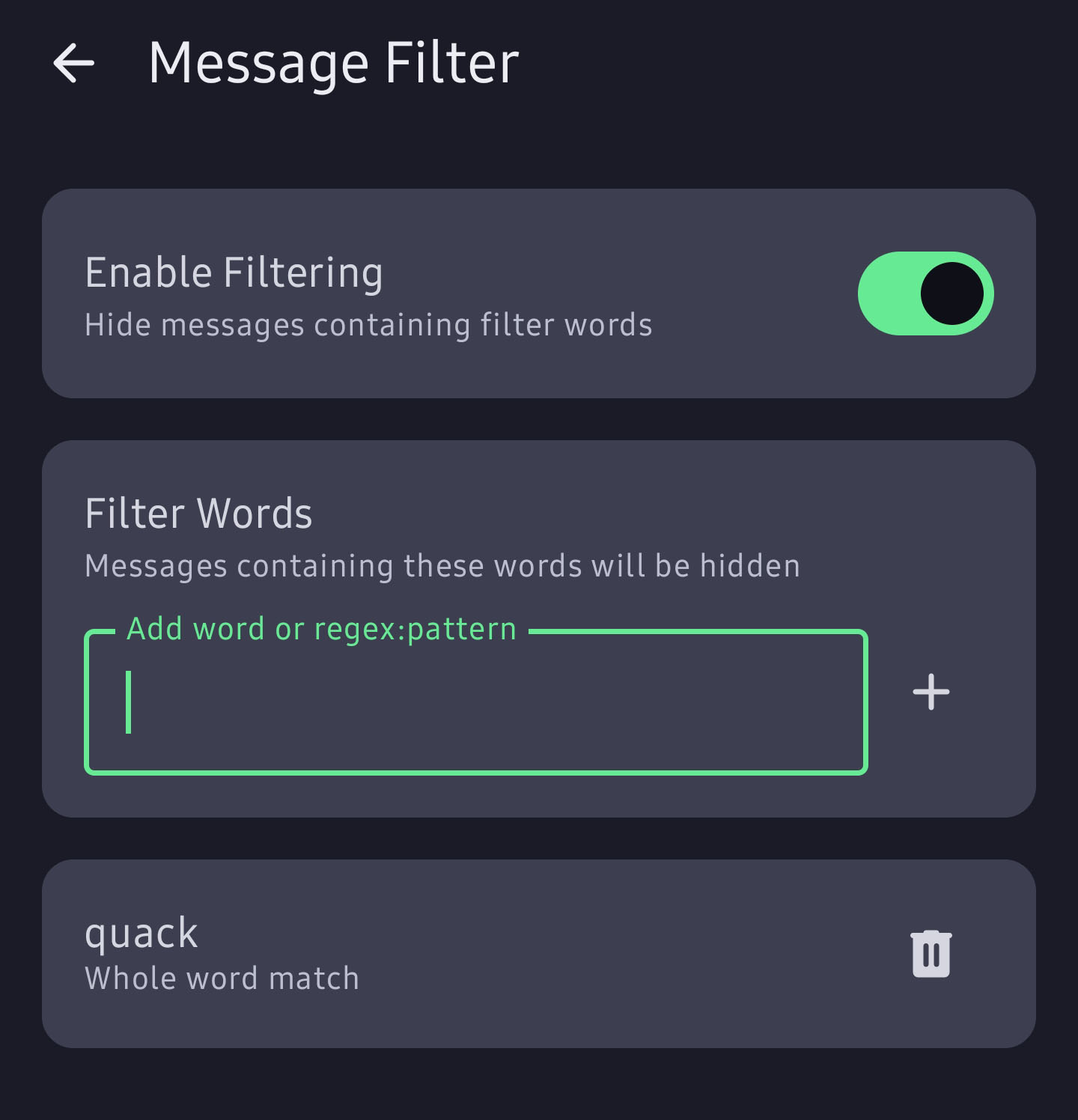
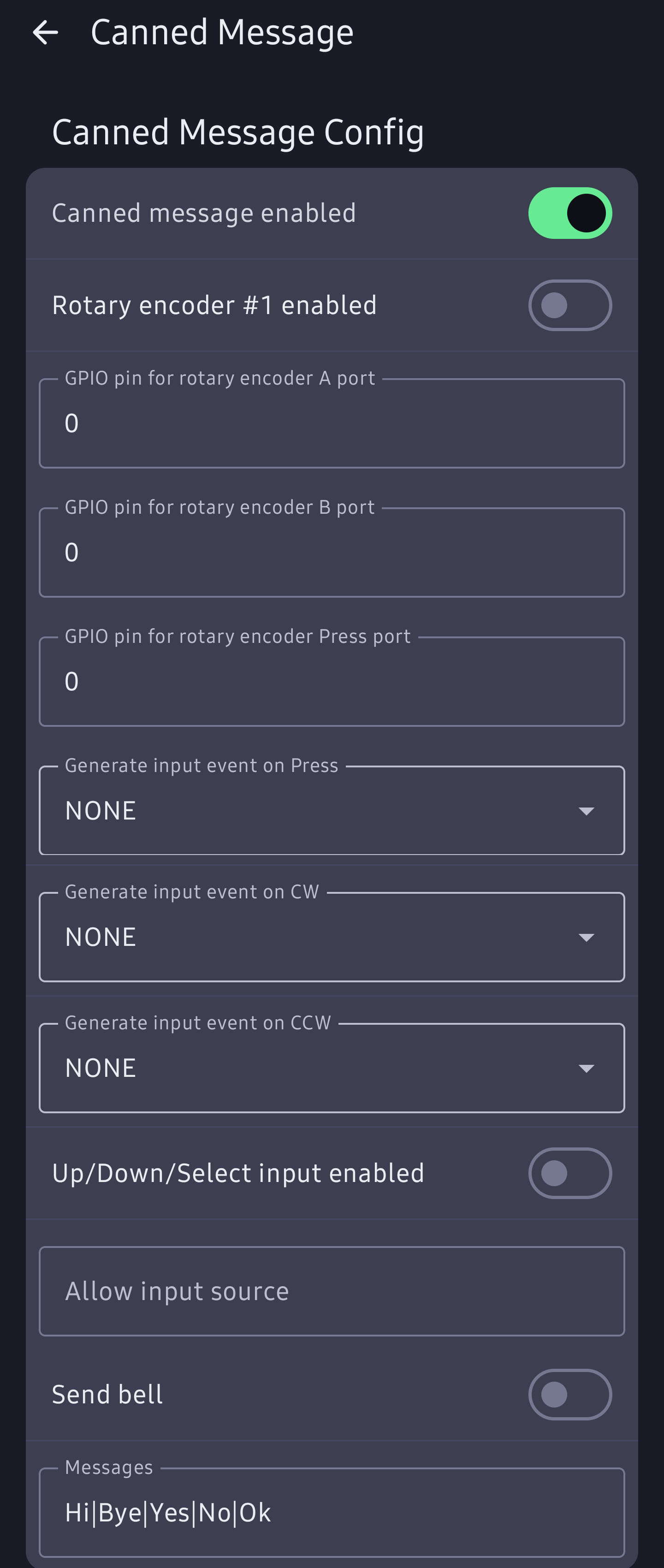
Filter, canned replies, block users, and more.
- Words and patterns gone!
- AKA "ignore"
Advanced Functions